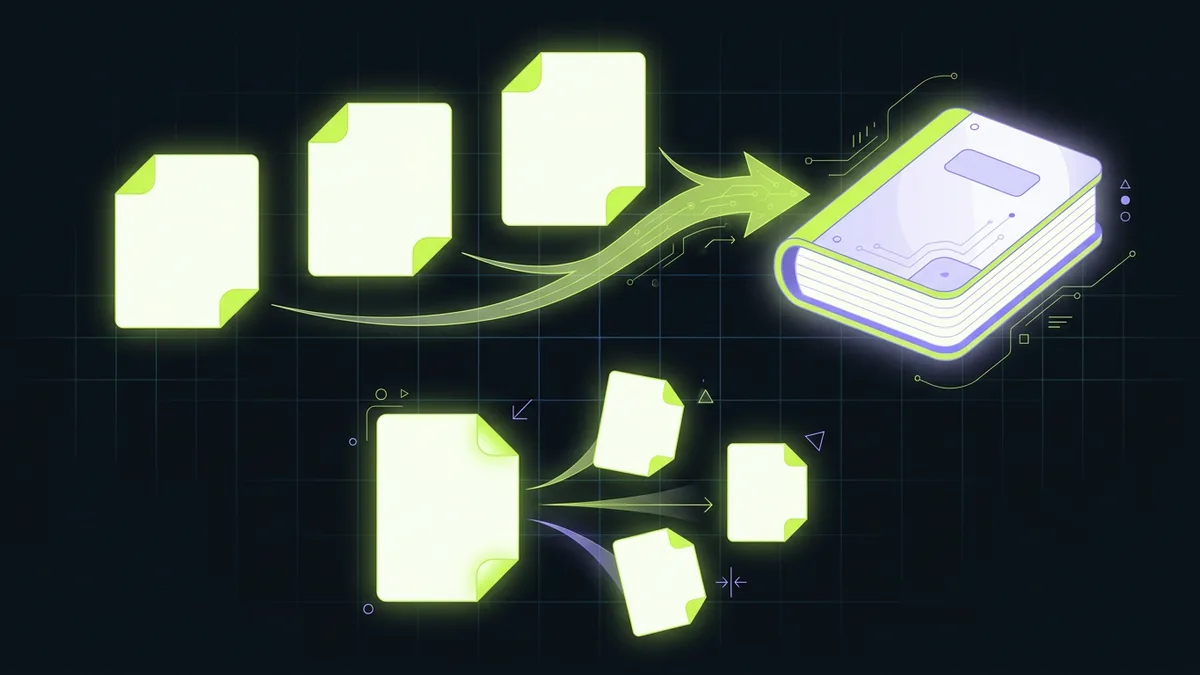
Merging files in the order you want
The merge mode takes any number of PDF files and joins them into one document. Each file appears in the list with its page count and its size, and the arrow buttons move a file up or down. The order of that list is the order of the pages in the finished file, so it is worth arranging the files before you press the button rather than afterwards.
Pages inside each file keep their own order. If you need to rearrange pages inside a single document, use the split mode to pull the pages out and then merge the files back in the order you want.
Splitting a document
The split mode works on one file. Once it is loaded, the page grid shows every page as a numbered button that you can click to select. Three output styles are available:
- One file per page writes every selected page as its own PDF. A report of forty pages becomes forty files.
- One file per range keeps the ranges you typed together. "1-3, 5, 8-10" produces three files: the first three pages, page five, and pages eight to ten.
- One file with all pages collects the selected pages into a single PDF, which is the quickest way to extract a few pages from a long document.
When the output is more than one file, they are packed into a single ZIP download rather than arriving one after another.
Choosing the pages
You can select pages in two ways, and the two stay in step with each other.
- Click the page buttons in the grid to pick the pages you want.
- Type the ranges into the range field:
1-3, 5, 8-10. The grid updates to match.
The order you write is the order you get. That is how you reorder pages: 5, 1-3 exports page five first and then pages one to three, and a reversed range such as 5-3 exports backwards. Page numbers always start at 1, and a range that points past the end of the document is reported instead of being silently ignored.
How to use it
- Choose Merge into one file or Split into separate files at the top of the panel.
- Drop the PDF files onto the panel, or click it to browse.
- In merge mode, move the files into the order you want with the arrow buttons.
- In split mode, pick the pages in the grid or type the ranges, and choose how the output should be split.
- Press the button and the result is downloaded straight away.
To build a PDF from pictures rather than from existing documents, the Images to PDF converter turns a set of JPG, PNG or WebP files into one document.
Good to know
- Your documents are read and rewritten inside the browser, so nothing is uploaded. Contracts, invoices and personal records stay on your machine.
- A password-protected PDF cannot be opened without its password and is reported instead of being processed. Remove the protection first and it behaves like any other file.
- Merging is done by copying the pages into a new document, so bookmarks, interactive form fields and some annotations are not carried over. The text, the images and the layout are.
- Large documents take a moment in the browser. A file of a hundred megabytes or more is usually better handled on a desktop than on a phone.
- The output is a normal PDF that opens in any reader. To look inside a finished file, the Binary File Inspector shows its real structure.